
Landscaping
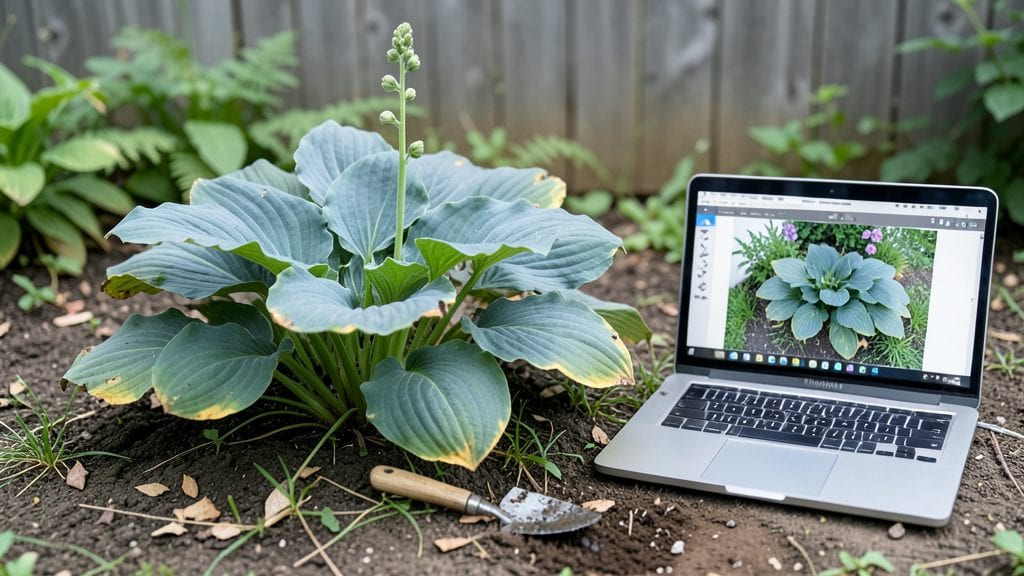
Creating a stunning garden design online lets you sketch your dream yard without ever touching a shovel. ✨ I used to stare at empty spaces wondering where to start—until I discovered how AI tools could generate layouts tailored to my yard’s shape, sunlight, and even my favorite plants.
Now I can experiment with cottage charm, modern minimalism, or lush edible gardens before committing a single inch of soil.
The best part? You don’t need a degree in landscape architecture—just a free online tool and 30 minutes to play. These platforms handle the heavy lifting: mapping sun exposure, suggesting plant pairings, and even estimating costs.
I’ve designed everything from cozy herb spirals to dramatic perennial borders, all without breaking a sweat (or the bank).
By the end, you’ll have a digital blueprint that feels like a finished garden—complete with color palettes, material swatches, and even seasonal interest timelines. The best designs I’ve created show exactly where to place that dream bench or how to turn a shady corner into a thriving fern grotto.
Ready to see your vision come to life on screen?
Works for any yard size, from tiny urban patios to sprawling acres. Whether you’re refreshing an old space or starting from scratch, these tools make the impossible feel surprisingly achievable. Let’s get designing!
📚 In This Guide
- What you need
- Instructions
- Tips and common mistakes
- Wrapping up and next steps
What you need
- ● Design Software/Tools: Laptop/tablet with SketchUp, Landscape Design Software (e.g., Pro Landscape, Garden Planner), or AI tools (e.g., SmartDraw, Canva)
- ● Stable internet connection for online templates and AI renderings
- ● Measuring & Planning Supplies: Measuring tape (50–100 ft, 1/16" precision)
- ● Graph paper or digital grid tool (for scaling)
- ● Stakes & string (for marking layouts; 10–20 stakes, 50+ ft string)
- ● Notebook or digital notes app for tracking ideas
- ● Hardware & Construction: Shovel & spade (medium-sized, ergonomic handles)
- ● Wheelbarrow (for hauling soil/mulch; 2–3 cu. ft. capacity)
- ● Level (4 ft or laser level for grading)
- ● Hedge shears & pruners (bypass pruners for clean cuts)
- ● Check local building codes for hardscaping (e.g., patios, retaining walls).
- ● Verify HOA rules (if applicable) for plant heights, structures, or colors.
- ● Test your soil pH (use a digital meter or kit) to pick compatible plants.
- ● Plan for water access (hose bibs, irrigation systems) if designing a garden with thirsty plants.
Step-by-Step instructions for creating your dream garden layout online
Here's how to turn your vision into a polished, print-ready design without lifting a shovel.
🪴 Step 1: Gather Your Base Materials and Inspiration
Start by collecting reference photos of gardens you love—note the color palettes, plant groupings, and hardscape elements that catch your eye. I keep a digital folder called "Garden Mood Board" where I save images alongside measurements of my yard's dimensions. This helps translate abstract inspiration into actionable dimensions.
Use free online tools like Google Earth's satellite view to map your property's sunlight patterns. Mark north-facing areas where shade-loving plants will thrive, and highlight south-facing zones for sun-hungry varieties. This step ensures your digital design accounts for real-world growing conditions before you commit to a layout.
☀️ Step 2: Select Your Design Platform and Input Yard Dimensions
Choose an AI-powered garden design tool like Garden Planner or SketchUp Free—both offer intuitive interfaces for beginners. Input your yard's total square footage and key features like patios, walkways, or existing structures. I always start with the hardscape elements first because they anchor the design and prevent plant placement from feeling arbitrary.
Most platforms let you import a scaled site plan as an image. If you don't have one, sketch a rough outline on graph paper using a 1-inch = 10-foot scale. This visual reference makes it easier to position elements accurately in the digital space. Don't worry about perfection here—you can always adjust proportions later.
🌱 Step 3: Place Hardscape Elements and Define Zones
Begin by placing permanent features like decks, fences, or garden beds. Use the platform's measurement tools to ensure pathways remain 3-4 feet wide for comfortable access. I like to create three distinct zones: a seating area, a planting bed, and a utility zone for tools or compost. This organizational approach makes maintenance easier later.
Consider how sunlight moves across your yard at different times of day. Place seating areas where morning sun warms them but afternoon shade keeps them comfortable. Use the platform's shadow simulation tools to test how your design will feel throughout the day. This is where many people make their first mistake—ignoring seasonal sun shifts.
🌿 Step 4: Add Plants Using the AI Plant Placement Tool
Most modern design platforms include AI-assisted plant placement features. Input your climate zone and select plants that thrive in your region. The AI suggests groupings based on height, color, and bloom time. I always start with the tallest plants at the back of beds and work forward to smaller foliage and ground covers.
Pay attention to the platform's spacing recommendations—crowding plants too closely leads to competition for nutrients and poor airflow. For example, a 3-foot tall shrub typically needs 4-5 feet of space between it and neighboring plants. Use the "seasonal interest" filter to ensure your garden has visual appeal year-round, not just during peak bloom seasons.
✂️ Step 5: Refine with Color Palettes and Material Samples
Use the color wheel tool to create harmonious plant combinations. I recommend sticking to 3-5 dominant colors with 1-2 accent colors to avoid visual clutter. Most platforms let you overlay color swatches directly onto your design to preview how flowers and foliage will interact.
Don't forget to select hardscape materials like pavers, mulch, or decking. Many tools offer 3D previews that let you "walk through" your design. I always check how materials reflect light at different times of day—light-colored gravel stays cooler in summer, while dark wood decking ages more dramatically over time. Save multiple versions of your design to compare different material options.
Tips & tricks for perfect AI-generated garden layouts
A few strategic moves will transform your digital garden design from good to stunning. Here's what I've learned from years of creating layouts that actually work in real yards.
Sunlight Simulation is Non-Negotiable: In Step 3, when you're testing sunlight patterns, don't just check one time of day. Most platforms let you simulate sun positions at different seasons—use this! I've seen beautiful designs fail because the owner didn't realize their summer patio would be scorching by 2 PM. Test morning, noon, and evening scenarios to catch these issues before planting.
The 3-Zone Rule for Organization: When placing hardscape elements in Step 3, think beyond aesthetics—consider how you'll actually use the space. I create three distinct zones: a "relaxation area" (seating), a "growing area" (plant beds), and a "utility zone" (tools, compost). This approach prevents that "what do I do with this space?" dilemma later. The 3-4 foot pathway width mentioned is perfect for wheelbarrows and easy access.
Plant Spacing is About More Than Looks: In Step 4, when the AI suggests plant placements, don't just accept the default spacing. A 3-foot shrub needs 4-5 feet of space—not just for visual appeal, but for proper airflow. I've seen gardens where plants were crowded too closely, leading to fungal issues and stunted growth. Use the platform's "mature size" filter to see how plants will look in 5 years, not just now.
Save Multiple Versions Before Committing: Before finalizing your design in Step 5, save at least three versions with different material options. I always test light vs. dark gravel, different decking woods, and various mulch colors. The way materials reflect light changes dramatically throughout the day—what looks perfect in the morning might feel completely different by afternoon. This simple step saves hours of potential frustration later.
Pro Tips for Garden Design Online
- A few strategic moves will transform your digital garden design from good to stunning.
- Sunlight Simulation is Non-Negotiable: In Step 3, when you're testing sunlight patterns, don't just check one time of day.
- The 3-Zone Rule for Organization: When placing hardscape elements in Step 3, think beyond aesthetics—consider how you'll actually use the space.
Frequently asked questions
Got questions about designing your garden online with AI? You’re not alone! Here are some of the most common queries—and straightforward answers—to help you get started without the stress.
Can I really design a garden online without any experience?
AI-powered garden design tools are built for beginners. They guide you step-by-step, suggest plant pairings, and even adjust layouts based on your skill level. Just input your space’s size, sunlight, and style preferences—no green thumb required. Pro tip: Start with a sketch or photo of your yard for the best results!
How long does it take to get a custom garden layout?
Most online tools generate a basic layout in minutes, while detailed designs (including plant lists and material estimates) may take a few hours. Premium services or AI consultations might take 1–3 business days. Pro tip: Save time by measuring your space and noting any existing features (like trees or patios) before you begin.
Are AI garden designs more expensive than hiring a landscaper?
Not usually! DIY online designs cost $20–$200 (or free with basic tools), while a pro landscaper charges $50–$150/hour for consultations alone. AI saves you money while still delivering professional-grade layouts. Pro tip: Use free trials to test tools before committing to paid features.
What if my yard has tricky features (like slopes or shade)?
AI tools handle challenges like slopes, shade, or odd shapes—just specify them in the design prompts. For example, mention "south-facing slope" or "dappled shade," and the algorithm will suggest durable, low-maintenance plants and terraced layouts. Pro tip: Upload a photo of your yard for the AI to analyze lighting and terrain automatically.
Can I edit the design later or get multiple ideas?
Yes! Most platforms let you tweak colors, swap plants, or regenerate layouts with one click. Some even offer "mood board" features to compare styles (e.g., cottage vs. modern). Pro tip: Save 2–3 variations before finalizing—you might love a mix of them!
What if I don’t like the AI’s suggestions?
No pressure! You’re in control—reject designs, request adjustments, or use the tool as inspiration for a human designer. Many platforms also offer "remix" options to refine layouts. Pro tip: Ask the AI for "alternative styles" (e.g., "more drought-resistant" or "child-friendly") to explore fresh ideas.
Wrapping up and next steps
Designing your dream garden has never been easier—or more exciting! With AI-powered online tools, you can bring your vision to life without the guesswork, blending creativity with convenience.
Whether you’re a seasoned green thumb or a first-time gardener, these platforms make it simple to experiment, refine, and finally create the outdoor oasis you’ve always wanted.
Ready to take the next step? Start sketching your layout today—your future garden is just a few clicks away! 🌱✨